
MIB Browser
The MIB Browser is where GridNMS keeps every SNMP MIB file available to your system: the ones that shipped inside a vendor pack bundle and any you’ve uploaded yourself. It’s the reference you reach for when you need to know exactly what an OID means, or when you’re building your own monitoring pack and need to find the right OID to use.
Find it under Explore → MIB Browser.
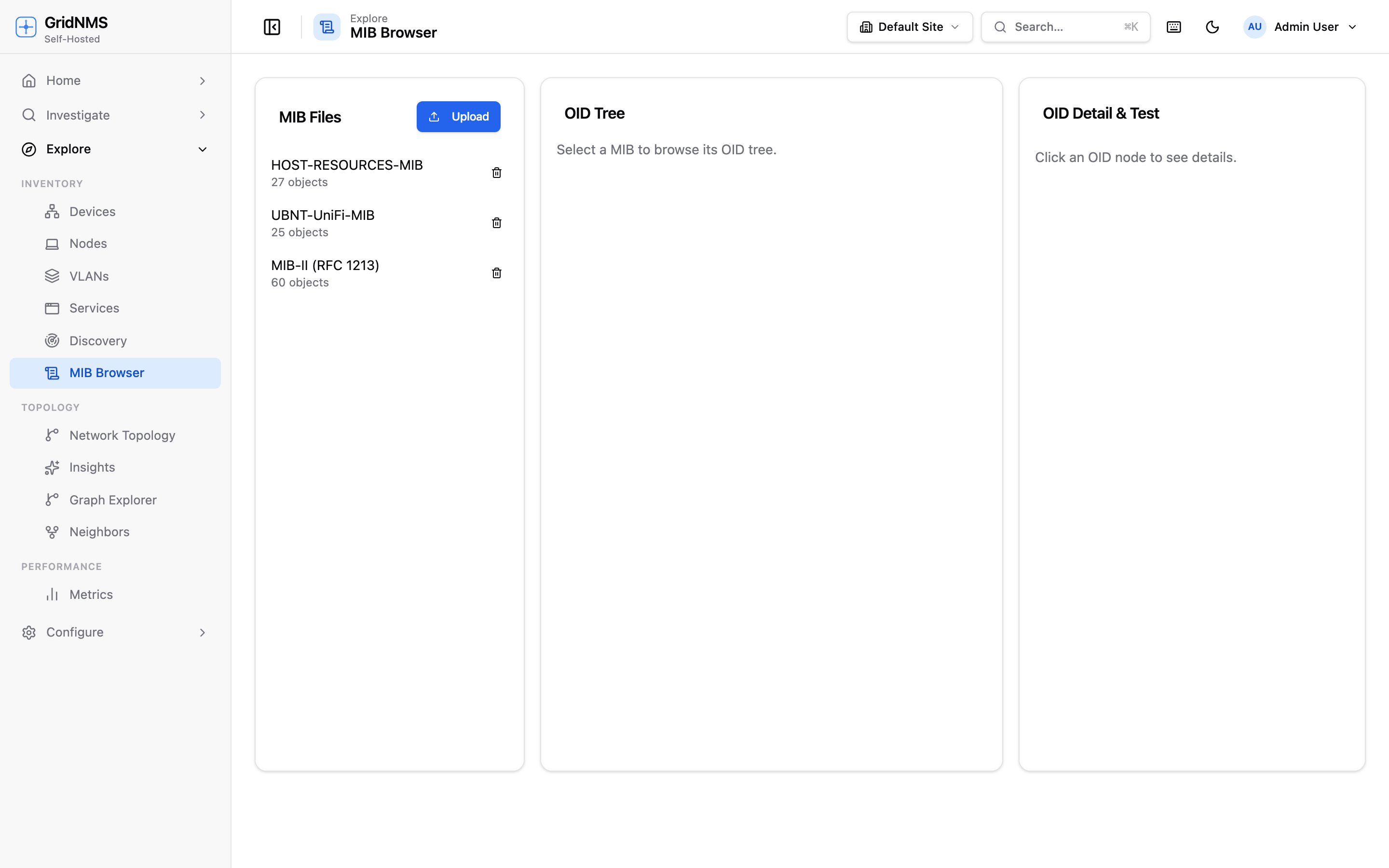 The MIB Browser: uploaded MIB files grouped by bundle on the left, the OID tree in
the middle, and the OID detail plus a live test query on the right.
The MIB Browser: uploaded MIB files grouped by bundle on the left, the OID tree in
the middle, and the OID detail plus a live test query on the right.
How MIBs get here
Section titled “How MIBs get here”A MIB reaches the browser one of two ways:
- Automatically, with a pack. When you install a vendor pack bundle (or any pack that ships MIBs), its MIB files load into the browser and are grouped under that bundle’s name — no separate step.
- Manually, by upload. Click Upload, give the MIB a name, and paste in its raw text. GridNMS parses it into a browsable tree of named objects immediately. A MIB you upload this way — one that didn’t arrive with a pack — is grouped under Other.
The three panels
Section titled “The three panels”MIB Files (left) lists every MIB you have, grouped into a collapsible list by the bundle it came from (alphabetical, with Other last for anything uploaded on its own). Each entry shows how many objects it contains. Click one to load its tree; use the trash icon to remove a MIB you no longer need.
OID Tree (middle) shows the selected MIB’s objects as a browsable hierarchy — expand a branch to see its children, the same shape as the vendor’s own MIB document. Click any object to select it.
OID Detail & Test (right) shows everything about the selected object — its numeric OID, syntax, access level (read-only, read-write, not-accessible), status, and description — plus a live test query: pick a device, choose GET (a single value) or WALK (a whole subtree), and run it. The device’s real response comes back in a table, so you can confirm an OID returns what you expect against your own hardware before you build anything around it.
Using it while building a pack
Section titled “Using it while building a pack”The MIB Browser is the OID-finding tool for Building a Monitoring Pack — see Finding OIDs with the MIB Browser there for the step-by-step workflow of looking up an OID and verifying it against a real device before you drop it into a collector.
Where to go next
Section titled “Where to go next”- Vendor Pack Bundles — the packs whose MIBs auto-populate this browser.
- Building a Monitoring Pack — author your own pack using an OID you found here.
- Monitoring Packs — install, apply, and export the packs themselves.
docs built 2026-09-26 · 195c6d00